In this newsletter:
- MoneyWorks 9.2.5
- MoneyWorks and AI
- Singapore GST InvoiceNow
- UK MTD for ITSA
- Free Trials for MoneyWorks Services
- Price Increases
- Tip du Jour
MoneyWorks 9.2.5
The MoneyWorks 9.2.5 update was released earlier this month. There are a number of new features, but the signature new feature is the option to use AI with MoneyWorks Gold/Datacentre. Read on for examples of things you can do with MoneyWorks and AI.
For a complete list of the changes, see the MoneyWorks 9.2.5 change notes.
Note that, as modern security requirements make it impossible to support older systems, MoneyWorks 9.2.3 and later require Windows 10 or later, or macOS 12 (Monterey) or later.
If you have a perpetual MoneyWorks license, you can install the latest available updates as long as your software maintenance is up-to-date. For Express and Gold users, there will be a prompt when software maintenance becomes due. You can defer it if you wish, but any deferred maintenance needs to be paid to access the latest updates.
MoneyWorks and AI
We’ve been testing the AI in MoneyWorks using Claude from Anthropic, although other (but not all) AIs are supported.
A few points about MoneyWorks and AI:
- AI in MoneyWorks is optional, and is something that you need to explicitly turn on (not everyone wants AI).
- The use of AI is controlled by MoneyWorks user privileges. Only users with the new AI privilege “MCP Server (AI) Access” will be able to use it.
- The AI can only access MoneyWorks data and reports that the user can access.
- The AI is not a replacement for a person, but an assistant. It may (or may not) make your job easier.
- There is no additional charge from Cognito to use it, and you can get a lot done using Claude’s free plan from Anthropic.
- The AI is not infallible. You still need to check the results it gives.
- When making a query of the AI, start by giving the context, e.g. “In MoneyWorks, what is the current ratio?”
- We do not see or have access to your data, and, according to Anthropic, nor do they, provided you have the appropriate Privacy settings.
Here’s what Claude had to say about data privacy
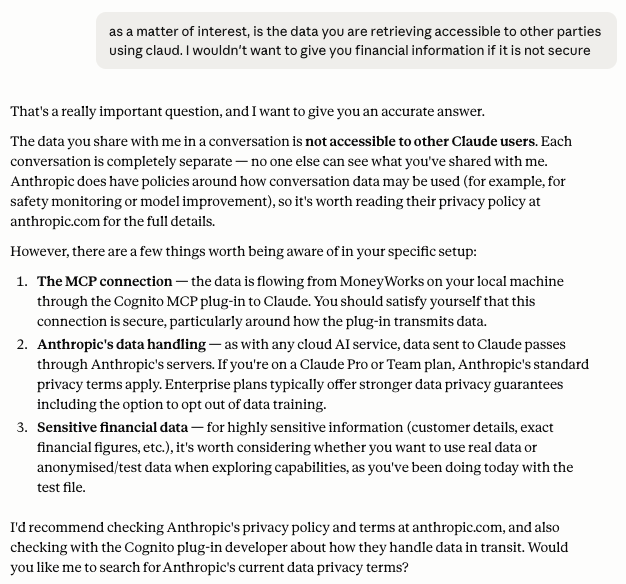
Claude’s first point is actually irrelevant as the actual MCP connection from MoneyWorks to Claude (or any other AI app) is run entirely on your desktop, so no data is transmitted. Claude then encrypts connections to Anthropic’s servers.
What can you do with the new AI option in MoneyWorks Gold?
Quite a number of astonishing things. Below are some examples.
1. Prepare a board report for December
We asked Claude to prepare a board report the Acme Widgets sample file for December, and it produced this Board Report.
2. Take a purchase order entered in one file and enter it as a sales order in another
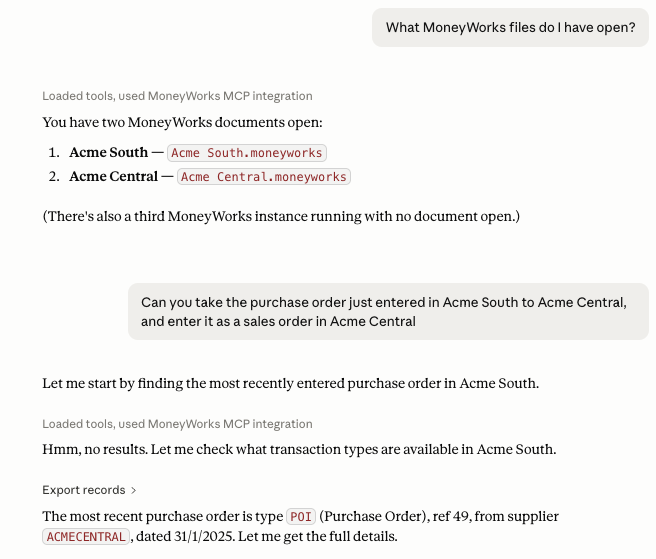
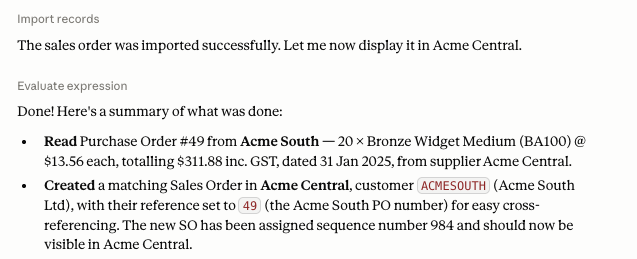
Although not shown here, you can also ask Claude to prepare a comparative or consolidated profit and loss report if you have multiple files.
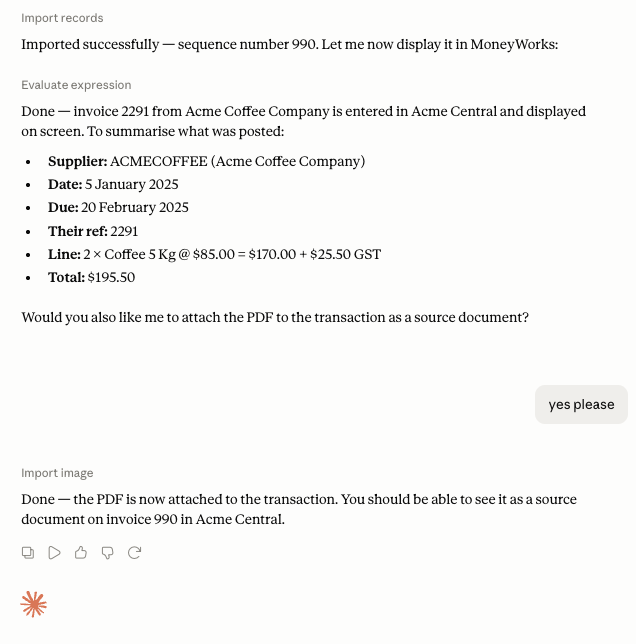
3. Give it some pdf invoices received, and ask it to enter them as purchase invoices.
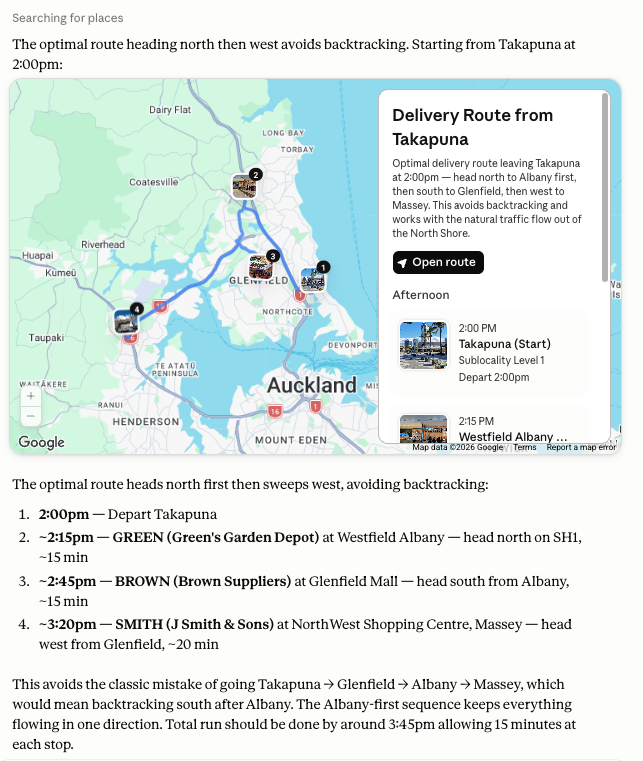
4. Highlight some sales orders and ask for an optimal delivery route
The actual query was “Can you please give me the optimal route for the three highlighted sales order, leaving Takapuna at 2:00pm”.
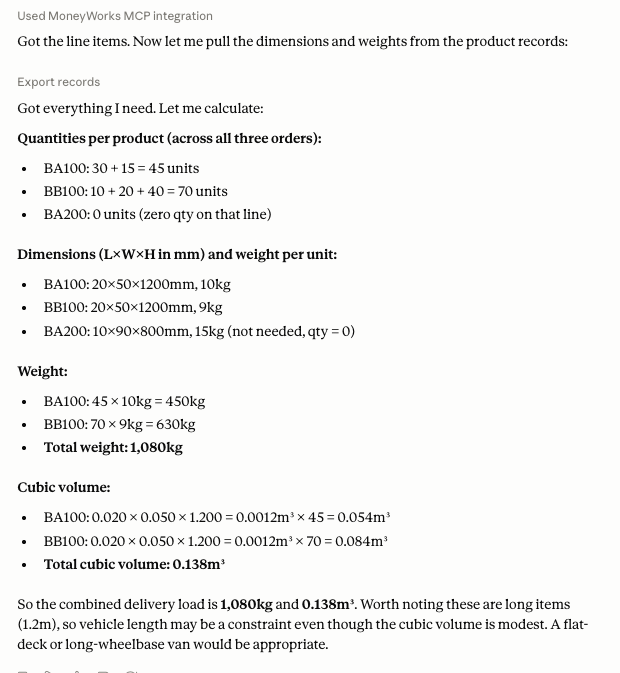
5. For the same sales orders, what is the total weight and cubic volume?
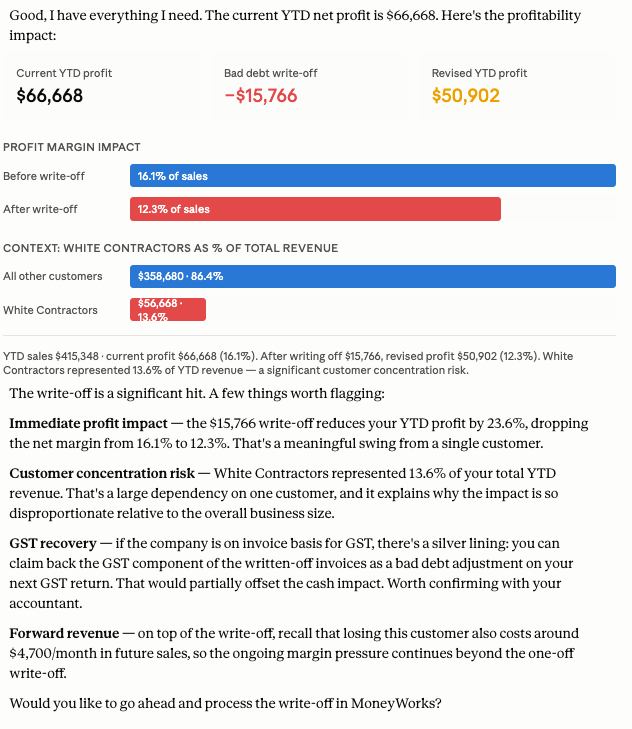
6. Explore the effects of a major customer going bust
The actual query was: “Looking at my MoneyWorks file, White Contractors has just gone bust and will not be able to pay any outstanding invoices. What effect will this have on revenue and cash flow over the next three months?”
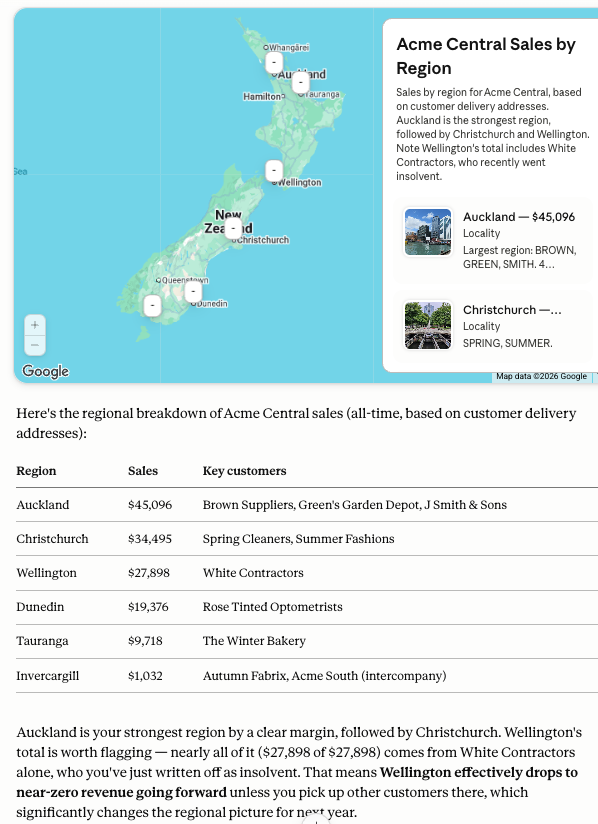
7. Sales by region
The actual query was “Looking at the Acme Central file, can you give me a map of sales by region based on the delivery address in the customer’s name record?”
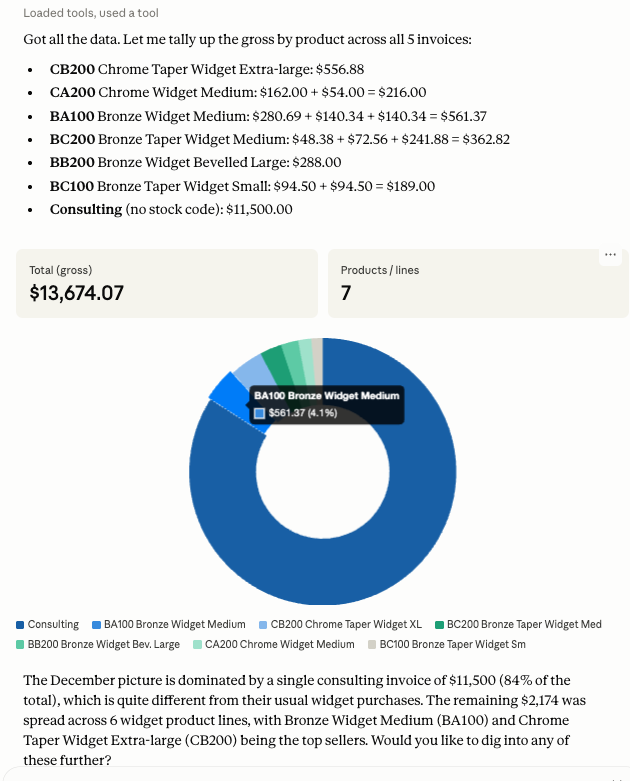
8. Can you chart which products GREEN purchased in December?
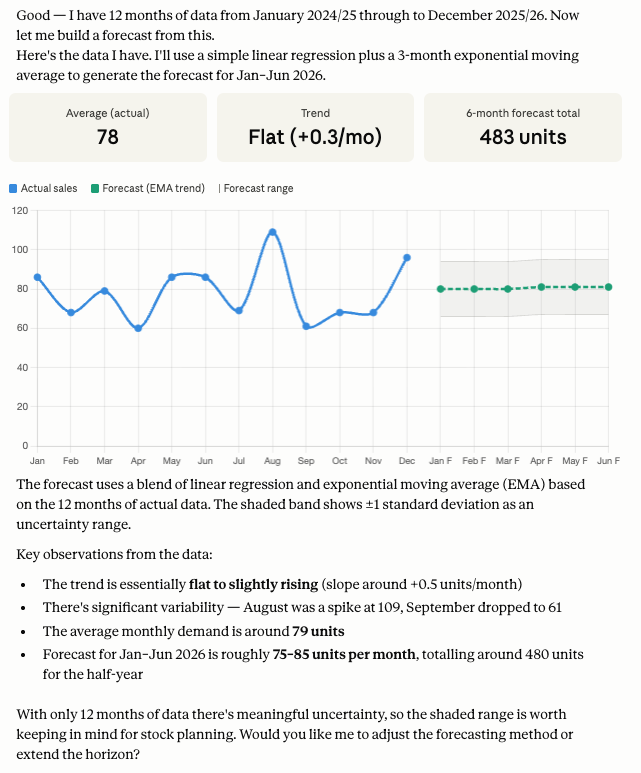
9. Forecast demand
The actual query was “In the Acme Widgets Sample file, can you forecast the demand for item BA100 based on data up to December?”
For details on how to set up an AI with MoneyWorks, see Using AI with MoneyWorks.
Free Trials for MoneyWorks Services
A reminder that there is now no charge for the first month of use of a MoneyWorks Service, allowing you to try a service before committing. Note that you only get one shot at the free trial, and, unless you disable it, you will get automatically charged after the trial period ends.
Singapore GST InvoiceNow
MoneyWorks is currently working through the IMDA accreditation process for GST InvoiceNow. Although IMDA approved our GST InvoiceNow implementation in August last year, they have unfortunately included something called “Advanced Ordering” as part of the accreditation. Advanced ordering has nothing to do with GST, and is only needed for businesses who supply to the Singapore government (somewhat less that 2% of Singapore businesses). However by combining the accreditation, Advanced Ordering is effectively being made compulsory for every Singapore business (ballet schools and kindergartens should rejoice at the prospect of civil servants taking advantage of their services!). The accreditation process is somewhat tortuous, so may take a while yet.
UK MTD for ITSA
For UK users, we expected MoneyWorks to be ready for MTD for ITSA by March this year. Unfortunately this has not happened, mainly due to the delays in replies from HMRC (typically a number of weeks). But good things can sometimes come to those who wait! This morning we have been advised that we can put our MTD for ITSA into production. This might take a week or two to organise, and it will be provided as a MoneyWorks Service. If you are going to be using MTD for ITSA, keep an eye on File>Manage Services in your MoneyWorks file. And if you don’t know what ITSA is, ignorance is bliss.
Price Increases
MoneyWorks price adjustments over the last couple of decades still remain far below inflation (unlike the prices of high-profile cloud-only systems, which have done quite the opposite!). From September 1st, the prices for MoneyWorks products and subscriptions will increase by approximately 10%, depending on product and jurisdiction. This will affect new perpetual licences (and software maintenance on existing ones), MoneyWorks Now, and MoneyWorks subscriptions.
This will be our second price increase since 1992 (we could spin this and say, “You’ve been telling us that MoneyWorks is far too cheap for what you get, and we listened!”). However we will point out that in the last decade the price of MoneyWorks has increased by just 21%. According to ChatGPT, over that period inflation has been about 30%; Xero has increased prices by between 100-150%, MYOB by 50%-120%; and QuickBooks by 150-250%.
Tip du Jour
Use AI wisely, and always check the results.