MoneyWorks Gold 9.2.5 and later includes a Model Context Protocol server that allows a local AI client to query and control MoneyWorks on your computer. Because the AI client app is communicating with MoneyWorks Gold, it does not matter whether your data is in a local file, a local server, or a cloud server such as MoneyWorks Now. The MCP server also supports running multiple instances of MoneyWorks Gold, so you can work with several companies simultaneously.
Requirements
- MoneyWorks Gold 9.2.5 or later
and a desktop AI client app that supports local stdio MCP servers; currently, the best choice for this is:
- Anthropic Claude — Claude Desktop download page
MoneyWorks does also include install support for the OpenAI Codex
- OpenAI Codex aka ChatGPT — Codex download page
Very recently, OpenAI has mashed-up ChatGPT and Codex into one humungous app that is a bit of both. The installation process should still work, but OpenAI may have broken it with some versions, so make sure your installation is fully up to date. If the install fails, you can install manually using the settings described in Model Context Protocol
Setup
In MoneyWorks Gold:
- MoneyWorks Preferences → AI → Configuration…
- Click the checkbox to enable the MCP server (you do not need logging)
- Click Install into Claude and/or Install into Codex
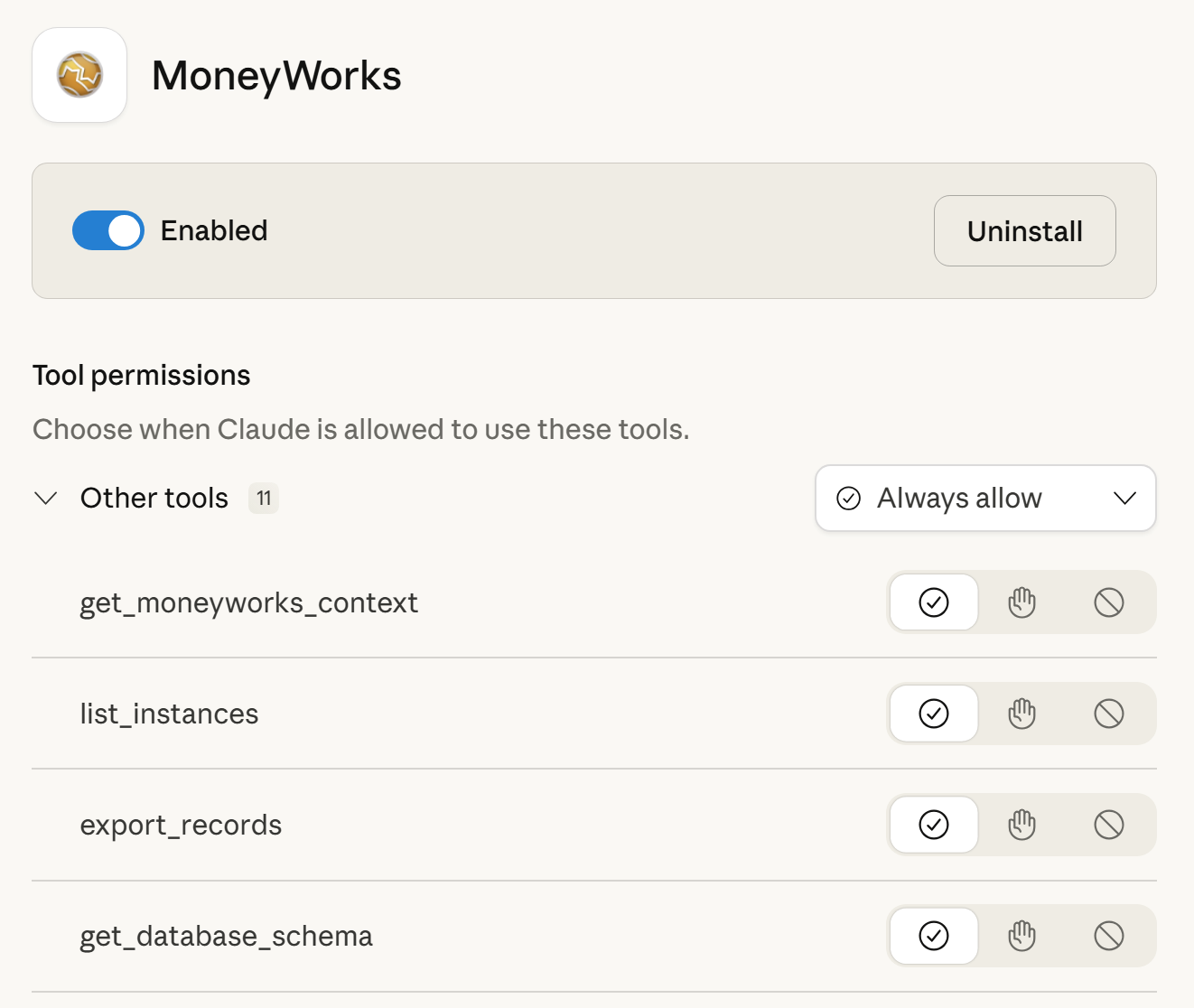
- Claude should offer to install MoneyWorks MCP. It will show a scary warning, however the MoneyWorks MCP will not in any way give Claude access to everything on your computer. The Codex install doesn’t have any UI in the app; you will just get a confirmation of the installation. You should restart Codex for it to load the server.
Windows Note: Some security settings on Windows may prevent MoneyWorks from installing into Claude for you (you might get an “Access is Denied” error from Windows). If this happens, you can install it manually by going to Settings → Extensions → Advanced Settings → Install Extension and selecting the moneyworks-mcp.mcpb file in the MoneyWorks Gold folder in Program Files
Data privacy
Be aware that if you let the AI app export or analyse your data or run reports, the data will be transmitted to the AI provider’s servers. That is a matter between you and the AI provider. If data privacy is a concern for you, do not use 3rd party AI.
Claude has a Help Improve our AI models option in its Privacy Settings (File → Settings → Privacy). At the very least, it is a good idea to turn this off to indicate that you do not want your data to be used by Anthropic for AI training. ChatGPT et al will have similar settings.
If you want to use your data with AI and retain complete data privacy, you would need to run your own AI inference. See Model Context Protocol
Privileges
Any actions/enquiries the AI takes will be subject to the privileges you have in the file you are logged into.
In the User Privileges for users in documents that you want to access via the MCP server, enable the following privileges:
- MCP Server (AI) Access
- Expression Evaluation
- Exporting
- Importing
Do not enable the “MCP Server (AI) Access” for users that should not have AI access to the document. Note that in MoneyWorks Gold 9.2.5, disabling the Expression Evaluation privilege does not prevent typing expressions into entry fields starting with an = sign, but it does restrict the functions available to only those that do not query the database.
Reports that might be accessed via the MCP server are subject to per-report privileges, or — for custom reports — report signing per-user (or else the Report Signing privilege itself)
The MCP Server Access privilege applies to the auto-loaded MCP server. Turn off this privilege to prevent casual/accidental exfiltration of business data to AI providers.
AI Queries
That’s it. With the server enabled, and appropriate privileges, you can now ask your AI to run reports and data analysis, open recent MoneyWorks files, and even find records and display them in MoneyWorks.
You should always begin an AI session by mentioning that you will be working with MoneyWorks, so that the AI knows to use the MoneyWorks MCP server. You might want to use a project for the purpose.
Examples to try:
- Please open the MoneyWorks sample file
- How is the balance sheet looking?
- Analyse the last 3 months’ sales breaking down by customer
- Open the MyCompanyLimited file from my recents in a new instance of MoneyWorks
- Set the colour of all of the sales invoices in Acme Widgets with a value over $1000 to red
- Find and display in MoneyWorks all of the invoices for customer SPRING
- Write me a MoneyWorks relational search expression to find all sales invoices for products whose colour is red
- Create an optimal delivery route for the delivery addresses in the highlighted sales orders and show me the resulting map
AI-generated responses can have mistakes (as can human-generated responses). The MCP server does not give the AI much scope for doing damage, and it should always confirm with you before doing something destructive like cancelling a transaction.
Company Context
If you want to provide additional context or prompts about your company to improve AI responses, the AI can read the text of a script named (exactly) Instructions.md in the document scripts. It can be plain text or you can use Markdown formatting. Open the Scripts window, click the [+] in the bottom left to add the script and use the name Instructions.md.
Working with other files on your computer
If you want the AI client to be able to access files on your computer (such as a folder of PDF invoices that you want to have the AI import), you will need to allow the AI direct access to a folder on your computer — it will ask for permission. Files you drop into the Clause app will not be able to be passed to MoneyWorks.
Installing updates
After updating MoneyWorks, AI clients will lose their connection to the MCP server (since it has been replaced with a new one). You should quit and restart any AI client you are using to encourage it to reconnect. On Windows, you will need to right-click on the icon in the system tray to properly quit (Claude and Codex keep running even when you close the main window).
Troubleshooting
- If the AI app cannot connect to MoneyWorks in the first instance check that you have enabled the MCP server, installed it into your AI client, and have the AI access privilege for your user in MoneyWorks.
- If there are connection errors between the AI app and MoneyWorks, try restarting both.
- The MoneyWorks MCP server uses localhost HTTP loopback networking to communicate with running MoneyWorks Gold instances. If the AI client app can connect to the MCP server but all tool calls to MoneyWorks Gold itself consistently fail even after restarting both, a likely culprit on Windows is antivirus or “security” software blocking network traffic.
Other AI clients
These clients do not currently support local MCP servers:
- Manus — has a desktop app, purports to support local MCP servers, but does not
- Copilot — does not support local MCP
- Deepseek — does not have a desktop app
You can connect other AI clients such as gemini-cli / Antigravity or self-hosted models by configuring them manually. See Model Context Protocol