24 Sept 2014 — these change notes apply primarily to MoneyWorks Datacentre and MoneyWorks Gold, but changes to non-product-specific features will also apply to Express and Cashbook.
7.1.6 brings some more significant performance enhancements to Datacentre server and MoneyWorks Now clients accessing the server over the Internet or other high latency network connection.
Note: due to changes in the network protocol, MoneyWorks Gold 7.1.6 will not log in to an older server. Be sure to update servers first.
Datacentre server performance improvements for high latency network connections
- Faster rendering of list views, most noticeable with lists that have standard or custom calculated columns that look up data from other tables (e.g. the Debtor list does this to display the overpayment indicator; and of course the Detail Lines list).
- Sales Enquiries for ranges of Products and Customers are now much faster (3-50x in testing).
- Sum Selection is much faster for transactions, orders, and names.
- Increased cache sizes to better accommodate very large transactions (Sales Orders up to 600 lines now load much faster).
- Support for running Chain Reports on the server (The component reports must all be preloaded on the server—use Upload All). This means chain reports can run at full speed for internet clients. Chain reports will also now load any scripts for subreports when running locally in Separate Reports mode, but be aware that using this facility is limited by the fact that custom control settings cannot be passed to subreports.
- Loading a saved bank reconciliation is faster.
Other performance improvements
- By popular demand, the non-customisable but speedier version of the Aged Receivables/Aged Payables report from v6 is now accessible again. With Datacentre this will now run on the server, so will be faster than ever. This mode has been built in to the regular reports and can be activated with the following combination of settings: Age By = Period, Show Tax = off, Omit Zero Balances = on, Highlighted Only = off, By Currency = off, Subtotal = None, Use Built-in Mode = on.
New features
- Load Bank Statement now supports foreign currency bank accounts.
- Added a backup command to the command line tool. See the manual/usage page for details.
- Calculated columns in the Detail Lines list may access transaction fields without recourse to the Lookup function.
- Added GetTaxRate(code, date) function.
- Export command has XML option for Transaction, Items, Names, Jobs, Job Sheet Entries.
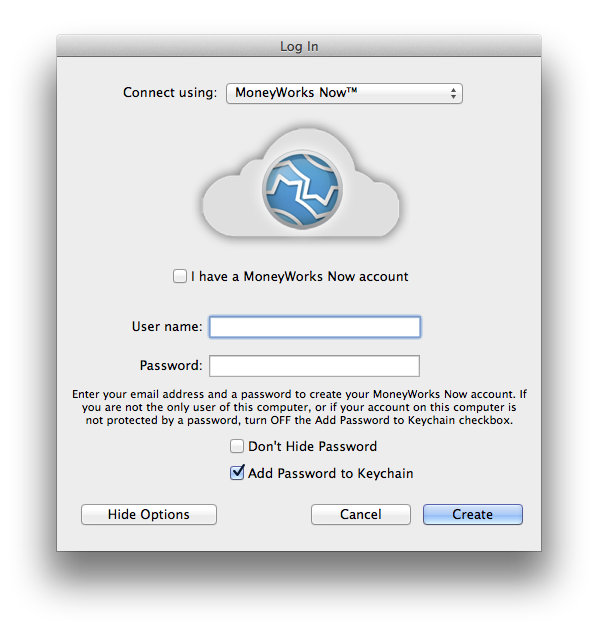
- Server details for MoneyWorks Now documents can now be seen by holding down Cmd/Ctrl when selecting the doc in the login list.
Behaviour changes
- If you leave your data file open overnight without having saved during the day, or you cause a Datacentre server to never be able to close the datafile (by, e.g. querying it constantly every minute, 24/7), MoneyWorks will now automatically force a save at approximately 11pm (server time).
- The behaviour of some intrinsic functions and of calculated columns has changed very slightly. This may affect existing forms, reports, or custom column calculations that rely on the previous behaviour.
- If NumToText is passed a parameter that is already text, it is now parsed to a number and reformatted in the requested format. Previously the text would pass through with its original format. A side effect of this is that NumToText(“blah”) now returns “0.00”, not “blah”.
- If DateToText is passed a parameter that is already text, it is now parsed to a date and reformatted in the requested format. Previously the text would pass through.
- TextToDate can now parse a YYYYMMDDHHMMSS string. The resulting “date” will include the specified time.
- The privileges for Name and Product Sales/Purchase enquiries have been renamed, which may affect existing privilege controls in reports and uses of the Allowed() function where these privileges are referred to by name. Please update your reports or scripts if you are testing these privileges in them.
- Datacentre backups are now performed asynchronously by a read-only backup process. The document becomes available for access (reopen) almost immediately after an idle close, while the backup is still being done. This should eliminate the “permissions error” window that used to happen for 5-30 seconds on document close during which reopen requests and REST requests for the document would fail and need to be reissued.
Bug fixes
- Fixed bug in the form pagination that could cause the Last Page Only visibility attribute not to work for forms printed by a network client.
- Error logging of XML was sometimes failing with a permissions error: fixed.
- Windows version is now applying half-even rounding again.
- Select Filter Privilege no longer throws spurious privilege errors in Navigator.
- REST 401 response was failing to provide WWW-Authenticate headers in ASP mode.
- Account Enquiry “Include Unposted” no longer puts the internal serverside report into the Reports menu as the last report printed.
- Fixed a crash in report writer when report author does not have privilege specified as a requirement in the report settings.
- A broken client connection while running a serverside report no longer escapes stale client detection.
- Fixed a potential crash when a Sales Enquiry for a range of names is interrupted by clicking Stop.
- Removed extraneous Find Advanced option from Item Sales Enquiry (Find and Find Advanced are interchangeable now).
- Fixed standard control parameter setting from REST/CLI (e.g. Show_Departments).
- Company Logo change is now more reliable on Datacentre (previously, certain graphic formats were not cleared which could cause a replaced logo to “stick”)
- Mac version now checks for oversized logo graphic before attempting to upload to server.
- Fixed a crash risk in detail list when transactions are deleted by another user while viewing the details
- A report script with the same name as a global script will no longer clobber the global script.
- Fixed the enabling of the MoneyWorks Now login button immediately after a new account password change.
- Fixed syncing of DI/SO/QU/Job numbers in single-user case.
- Script deletion now refreshes the script editor sidebar.
- Fixed a resource leak in Diagnostics.
- The Linesleft report variable now works when used before any output is generated.
- Auto allocation 2-way splits now use explicit rounding to ensure the split balances.
- Importing a text string via Applescript now accepts unicode text.
- Sending a report to the clipboard (Mac) now provides unicode text.
- Import error messages are now correctly encoded as utf8.
- Font loading failure is now reported to the user (in some cases such failure could result in a div by zero crash).
- Some std Analysis reports were complaining of wanting a signature.
- Fixed a security vulnerability in moneyworks_daemon.
- Fixed a problem with Datacentre that could prevent new connections after too many non-SSL connection attempts to a server configured to use SSL.
- Items sidebar reports renamed so as not to inadvertently load incorrect report
- Analysis reports now run on server again (bogus period out of range error)
- MWScript: elevated attribute now remains set after a call to a non-elevated handler.
- Windows 7 detail entry list now displays properly with 125% font scale
- Report writer server-side testing of report now properly disables the Refresh icon in Preview
- Sequence Number recovery after rollback no longer clobbers synced DI/SO/Job numbers with an old job number.
- OrderShipped field is now updated properly by Goods-before-invoice and deposit allocation.
- Singapore F5 Report tweaked realised gain/loss calculation.
- Improved error reporting for XML import of transactions (detail line index now reported).
- Apply (date) Format is a form no longer sets global short date format format.
- User2 import via REST/CLI now returns correct created/updated result.
- CLI/REST xml import duplicate error messages fixed.
- MoneyWorks Now logins now appear in the Welcome screen Recents list on Windows.
- Windows REST service now more reliable under high loads.
- ValidateCell is now called with the correct list/tab name when changing tabs (e.g. from By Item to By Account).
- Load Bank Statement: when a split transaction is converted to an invoice payment, the split amount now displays correctly.
- Load Bank Statement: New split rule created on a zero value transaction no longer gets bad split %.
- Full text search no longer incorrectly matches prefix of search term against shorter indexed fields such as transaction type.
- Full text search now correctly matches terms on the start of a line in a multiline address.
- Fixed overly long Malaysian tax rate names.
Other changes
- Location for installing Externals has moved to <Application Support/AppData>/Cognito/MoneyWorks Gold/Externals/.
- Job Code Required is now ignored for Quotes.
- Foreign currency transactions are now cancelled at the original transactions exchange rate rather than the current system rate. This is to prevent issues with GST/VAT processing. If you need to cancel an invoice at a different rate, do a credit note and contra it.
- A warning is now issued by the report printing dialog box before running a report locally on a high latency network connection. In this situation, reports should ideally be set to run on the server.
- Product.Count field may now be imported and used with the Replace command and ReplaceField(). When doing a canonical export (e.g. Copy to clipboard) of products, the Count is exported in the same column that StockOnHand is for inventoried products (these fields are mutually exclusive). If you want to copy/paste inventoried products to become counted products, be sure to clear the StockAcct and inventory flag (#08) when reimporting. You can explicitly set the count flag to have it set even when the imported count is zero (#800000).
- A reminder message is now issued when foreign currency accounts start to accumulate too much rounding drift. In this situation it is important to update the exchange rate for the currency (which gives MoneyWorks an opportunity to correct any rounding drift).
- With a Gold Server, editing of scripts is now restricted to the server machine, due to complications with handling edits on clients. Datacentre can handle script editing by any client.
- Datacentre Console: changing folder passwords no longer triggers a restart of the DC service
- Changing Company Details now refreshes the navigator so that changes are seen immediately (e.g. updated logo).
- Updated the Set Rate toolbar icon on Windows.
- Name.splitAcct1 and splitAcct2 are now explicitly searchable.
- With MoneyWorks Gold, the Load Bank Statement command can use an external MWScript (located in the standard Scripts/Bank Statement Importers/ folder) to import non-standard bank statement files. The script can use the new function AddStatementTransaction(ref, date, tofrom, desc, amt) to add transactions to the statement coding screen (transactions so added will be autocoded using rules in the usual way). The script will receive the Load message and should call AddStatementTransaction from there to add each transaction.
- Tweaked the Datacentre console app icon on Mac.
- The year popup in the report settings dialog now remembers its setting for the session.
- Fixed a potential multi-second hang when launching on Yosemite.
- The Use SSL checkbox setting is now remembered across sessions.
- BuyPriceCurrency can now be imported for existing products.
- Mac installers are now downloadable as .pkg files instead of .dmg.
- Report Scripts may now have the same file access privileges as regular scripts provided the report is running locally. Report scripts running on server are sandboxed. In general you should not rely on reading local text files from a report. Reading them from the web server is preferable.
- For Each part in a report may now read from a secure web server (https).
- Empty reports now display in preview less confusingly.
- Modified Mac code signing to conform to Apple’s new requirements for Mavericks 10.9.5 and Yosemite.
- Improved error handling when communicating with Cognito web services.
- CLI “list” reports command, now includes checked values for custom controls.
- Improved the CSS for overscore and underscore in HTML report output.
- CLI/REST list reports command now includes value of checkboxes/radio buttons stored in report
- Increased the size of the autocode account fields on Name entry screen.
- User2 fields may now be modified using the ReplaceField() function.
- Load Bank Statement will no longer use highlighted code/amount text as match text for a new auto allocation rule.
- REST: An Authorization header with no realm specifier is now assumed to be for the Datacentre realm if the server has ASP mode enabled.
- OFX, QIF, QBO files may now be dragged and dropped onto the Load Bank Statement window and also into the Transaction list to invoke Load Bank Statement. In the latter case, no date filtering will take place (likewise no date filtering will take place if the file is dropped on the app icon in the Dock).
- Load Bank Statement OFX/QBO importing now translates the ampersand entity.
- REST developers can have all headers logged for debugging purposes (in conjunction with the verbose logging setting) by manually editing the Datacentre conf2 file to set debug: 1
- Custom date controls in reports are now passed to the server in ISO format for international compatibiity.
- XML import errors are now logged to progress window.
- SMTP emailing no longer substitutes user’s email as From field if the SMTP server requires authentication.
- Added Paste Records command to contextual menu.
- Change Starts New Seq preference will now ignore a change to a non-numeric reference number.
- Random() function is now much more random, especially in CLI mode where it was not seeded, and on Windows where the seed was insufficiently random.
- Improved network latency measuring for better determination of when to use serverside reporting.
Additional changes in 7.1.6r1
- Applescript importing could hang on Mac. Fixed.
- Fixed some issues with Trial Balance report: Include unposted was not working in 7.1.6 and certain settings combinations did not work. The Include Unposted issue generally affected any custom report control with the same name as a standard control.
- Fixed script list handles whihc were not working in 7.1.6 on Windows.
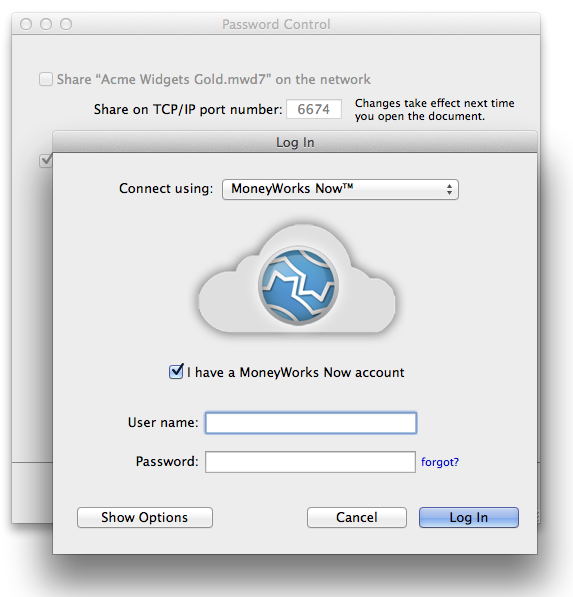
- MoneyWorks Now account reset link (“forgot?” password) now goes to correct server without redirect.
Additional changes in Datacentre 7.1.6r2
- Fixed failure to display Debtor/Creditor balances in Names list on Windows clients connecting over a high latency network.
- Fixed a potential server crash with certain custom column calculations.
Additional changes for Gold/ Datacentre 7.1.6r3
- Fixed optimised summing of purchase orders on high latency network.
- Fixed “wrong codepath for base currency” error in bank statement import.
- Ctrl-C in Console broadcast message dialog no longer sends message (ctrl-c was mapping to Enter)
- Allow longer username in SMTP authentication.
Additional changes for Gold/ Datacentre 7.1.6r4
- Fixed incorrect display of some columns in Stock Enquiry with Datacentre and high latency network.