Printing Multiple Forms
Multiple forms can be printed at one time by creating a Form Group—this is basically a list of forms to print in a single operation. As an example, you may want to print customer invoices together with envelopes to put them in, or maybe you laser-print your invoices for your customers and for some odd reason print your own copy on a dot matrix printer. You may even have different invoice forms to use depending on the type of customer—this can be accomplished by a combination of a form group and use of the Copies function.
To create a multi-page form group:
- Choose File>New>New Custom Form
The New Custom Form window will be displayed.
- Set the Form Type to the type of form (e.g. Invoice/Receipt), set the Multi-Page Form Group option, then click OK
The Form Chain window will be displayed
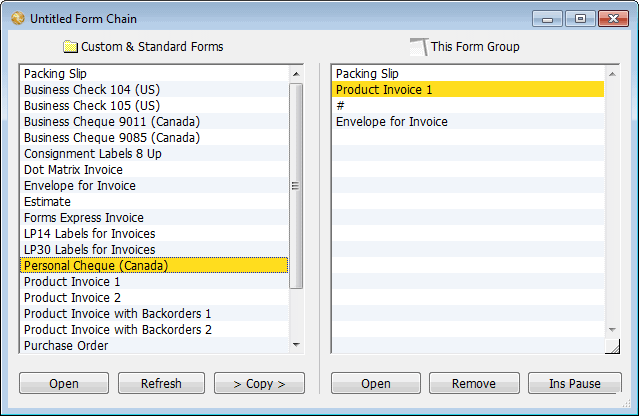
This contains a list of available forms of the required type. The forms that will be printed when we use this form group are listed in the right hand column. For new groups this will be empty.
- Highlight the first form you want printed in the left hand column, and click the Copy button, transferring it to the right hand side.
- Repeat with the other forms that are to be printed
The above group will print packing slips and invoices, then it will pause so that envelopes can be loaded into the printer, and then it will print these.
All of a component form is printed first, before any of the next form in the list are printed. Thus in the example above, packing slips are printed for all the highlighted transactions, then invoices, then (after a pause) envelopes.
To change the order of printing: Drag a form (in the right hand list) up or down. The forms at the top of the list will print first.
To pause in a print run: Click the Ins Pause button to insert a pause. Use this when you need to change stationery.
To remove a form: Highlight the form (in the right hand list) and click the Remove button. The form will be removed from the list.
To edit a form: Highlight the form and click the Open button under that list.
- Close the Form Chain window when the group is complete
You will be prompted for a name of the group.