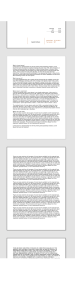
A customer wanted to add 10 pages of terms and conditions to an invoice PDF. How can that be done with a MoneyWorks invoice form?
Firstly, whenever a form needs differently formatted sections, you use Sections.
Section 1
The invoice part of the output will be Section 1. Normally a form has just one section. On section one, define the parts of the form (headings, line item list, totals etc). A line item list with many lines may result in page breaks.
Section 2
The terms and conditions will be section 2 — but how to output 10 pages of text? The maximum number of sections is 6.
Recall that the detail line list in section 1 allowed the invoice to spread over multiple pages. You can use a list object specifically for the purpose of generating page breaks:
- On section 2, create a small list object about 20 point high. This “list is just big enough that it would fit one line of output and then it wil lgenertae a page break.
- Activate the list object and drag the heading separator of the list to the top so that it has no heading area
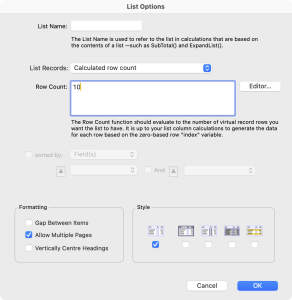
- Right click in the list and choose List Options
- Set the List Records to Calculated row count
- Set Row Count to the number of pages you want. The small list object will cause a page break for each row of output (there will not be any output because the column of the form is blank — all we want are the page breaks).
- Set the format to have no lines or stripes and make sure Allow Multiple Pages is on
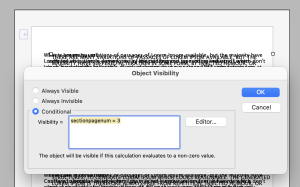
- Create a text object for each page of output — put your terms and conditions in the text objects (they will all overlay each other). On each object, right click and set the Visibility.. so that the object only shows on the nth SectionPageNum for that section:
Result