Multi-location plug-in

This plug-in is no longer required or supported as the functionality has been built-in to MoneyWorks 8

What is it

The Multilocation stock Plug-in facilitates management of inventory in multiple locations. It is suitable where you have multiple warehouses, consignment stock, vehicles that contain inventory etc.

The plug-in enables the transfer of stock from one location to another, automatically creating the new location if required. Locations are represented by a single alpha-numeric character which is appended to the stock code. This enables full audit trails of all stock transfers and sales.

The download includes includes instructions, a plug-in for Window (“Transfer Stock.exe”), and a plug-in for Mac (“Transfer Stock.app). Ensure that you only install the plug-in appropriate for you platform.

Downloads

MultiLocation.zip

Posted in Multi-Location, Resources | Comments Off on Multi-location plug-in

Introducing MoneyWorks 7: The fastest just got faster

MoneyWorks 7 was first released in August 2013—these release notes are preserved for posterity

With many significant new capabilities and extensive work “under the hood”, MoneyWorks 7 is both faster and easier to use.


Faster, easier full-text search

The new search box in the toolbar makes finding information both faster and easier. Just type a word and MoneyWorks instantly starts searching the full text of the records in the list (even including sticky notes and detail lines).

Unicode

Now you can record information and prepare invoices/reports in almost any language, including Chinese, Japanese, Greek, Cyrillic and most other non-Roman text. This also provides full cross platform support for accented characters (bonne idée, Māori) and other special symbols.

Faster

MoneyWorks has long been a speed king in the accounting software world, but now the database and network performance have been made even faster. Datacentre users in particular will benefit from some dramatic network performance increases—especially for clients connecting over the Internet.


I just used MW7 on […] Starbucks wifi and I honestly can’t believe how fast it was!”

—Jon, UK beta tester

Scripting

MoneyWorks Gold 7 includes a built-in script editor and compiler for an easy to learn and use scripting language which allows for extensive customisation of application behaviour. Scripting dramatically increases the power of MoneyWorks, allowing you to place your own buttons on windows to add additional functionality to MoneyWorks. Want to automatically round transactions to the nearest 10 cents? Automatically update exchange rates daily, weekly or monthly? Implement a complex pricebook? It can be done with a script.


Stock Counting

Stock counting is ideal for those who do not want the overheads of running full stock accounting, but just want to keep a simple count of items. Available in all products (including Cashbook and Express), it is ideal for situations like farm accounting and share portfolios, where full inventory accounting is not appropriate.

More Reports

We’ve added some great new reports and reorganised the existing ones to make them easier to access. Many reports can now be accessed directly from the list sidebar. New reports include:

  • Daily Summary Dashboard
  • Executive Summary
  • Backdated Transactions
  • Recurring Transactions
  • Overpayments Report
  • Trial Balance to Date
  • Chart of Accounts
  • Department Listing
  • Profit and Loss for Five Years
  • Cumulative Profit and Loss for Period Range


Other changes include…

  • Posting
    Posting now happens on the server so it is much faster when running on a network. And to streamline things, the posting process no longer stops and asks for a decision on how to treat out-of-stock conditions.
  • Customisable Reports
    With the exception of the GST/VAT report, all reports have been reimplemented as custom reports, so you can modify them (in MoneyWorks Gold) if you want.
  • Sidebar Reports
    Reports which operate on list selections are now directly accessible through the list’s sidebar.
  • New locale for Malaysia
  • Electronic banking security enhancement (multiple exports with different accounts are logged)
  • Toolbar icons that do not fit in window are now accessible from a chevron menu
  • Report Privileges
    Access to the standard reports is now subject to privilege control, for easier management of financial security. For example, you can only run a Profit and Loss report if you have the Account Enquiry privilege. Reports can still be signed for a finer level of access control (the factory-standard reports have been signed by Cognito to allow them to be run by anyone with appropriate privileges.
  • Building Items
    Parts need no longer be in stock (they will just go into negative stock). Components no longer need to be purchased, but only require a cost account specified on the Item’s Costing tab.
  • Additional user-defined storage in the User2 table
  • Transaction Details printing
    Get a transaction details report for selected transactions right from the transaction list toolbar or sidebar. This report is now customisable using the Report Writer.
  • MoneyWorks Manual
    The revised User Guide for MoneyWorks 7 is now installed on-demand and can be updated via Software Updates, should that be required.
  • On-line help
    The on-line help system is now fully integrated with our web site for an improved and consistent answer-finding experience.
  • Improved Refund dialogs make it easier to select credits for refunding (especially if you have hundreds of them!)


Scripting

New scripting facilities allow for easy customisation and extension of MoneyWorks functionality.

With MWScript, you can:

  • Add toolbar buttons or menu commands to invoke your scripts
  • Validate or auto-fill data entry fields or screens
  • Invoke or look up data from external web services
  • Create simple dialog boxes for data capture
  • Included example scripts for exchange rate lookup, cash-rounding, BOM cost update and journal creation, purchase order creation.


Scripting language features

  • Platform neutral: Write once; deploy on either platform
  • Fully embedded: Policy-enforcing scripts cannot be circumvented by removing script file.
  • Fast. Scripts run right in MoneyWorks, so there is no IPC overhead
  • The MWScript language is closely aligned with purpose, making it really easy to customise MoneyWorks.
  • Very dynamic loading of scripts: Make a change, activate script and it’s immediately enabled.


  • Easy deployment: Scripts can be emailed to customers and installed by a double-click.
  • See the Developer page for MWScript Documentation.


MoneyWorks Datacentre Server 7

MoneyWorks Datacentre 7 naturally includes all of the new features and benefits of MoneyWorks Gold 7, plus a few specific improvements. The upgrade to version 7 is provided at no additional charge as part of the Datacentre software maintenance programme (programme subscription must be up-to-date).


The Cloud

It’s not just for web browsers.

With phenomenal performance enhancements to overcome Internet latency, and interoperability features such as the REST interface introduced in v6.1, MoneyWorks Datacentre now gives you the opportunity to run your own access-anywhere cloud server. Host on your own site, or with an application hosting service.

Your data, on your server, with a fully interactive desktop user interface. Integrate with other applications on your desktop, or server-based applications on your server.


Enhanced Internet performance

Extensive work has been done to dramatically increase the performance of MoneyWorks Datacentre over a high latency network (aka “the internet”). For most operations, using Datacentre over the internet from a remote location is almost as fast as a local area connection.

  • Faster login
    The server connection process has been optimised to dramatically speed up login to the server.
  • Server-side reporting
    All standard reports (including sales analysis, GST etc) now run on the server, and all output modes are now supported when running on the server (in version 6, only previewing was supported for server-side reports). It is no longer necessary to reserve a user login for use by the server-side reporting service.
  • Faster searches
    Advanced Find (used by complex search by formula) is now optimised and progressively executed on the server, so this type of search is now much faster. And of course there is the new dead-simple full text search in the toolbar.
  • Faster list display
    Advanced look-ahead caching means list display on a slow network is as responsive as on a LAN. (Note, if you have custom calculated columns in your lists then these may defeat the caching, so your mileage may vary).
  • Faster Enquiries
    The include-unposted function of the account enquiry is now executed on the server, so is much faster.
  • Faster posting
    Now done on the server. Don’t blink.
  • Faster Bank Rec
    Starts much faster and much more responsive on a slow network.
  • 64-bit
    Datacentre database servers now run in 64-bit mode on Windows as well as Mac, improving memory availability and therefore performance for very large files.


System Requirements

  • Mac
    Mac OS X 10.6.8 or later. Intel processor
  • Windows
    Windows XP SP3 or later. x86 or x64 processor.

Upgrading

  • Gold, Express, and Cashbook
    Upgrades may be purchased on our store
  • Datacentre
    Upgrade is provided as part of your maintenance programme. Please ensure your maintenance subscription is up-to-date.


Posted in Change History, FAQ, Resources | Comments Off on Introducing MoneyWorks 7: The fastest just got faster

MoneyWorks-Daylite Connector

The connector provides a direct link between MoneyWorks Datacentre and Daylite, the award winning Business Productivity & CRM system from Marketcircle.

With the connector you can:

  • Import your customer/supplier records in bulk from MoneyWorks into Daylite. Makes it easy for existing MoneyWorks users to get Daylite up and running quickly.
  • Update MoneyWorks in real time when the contact information changes in Daylite. MoneyWorks will reflect the change in the contact details with no data re-entry.
  • See live MoneyWorks customer financial and transactional information in a Daylite “Dashboard”. See transaction and payment history, order information and account status information from MoneyWorks live in Daylite. All the information you need about your customers at your fingertips, without needing to physically access MoneyWorks.
  • Import item records in bulk from MoneyWorks into Daylite to update your Daylite prices. Always have up to date pricing information when preparing estimates in Daylite.
  • Send your Daylite estimates to MoneyWorks. Your Daylite estimates will appear as Quotes in MoneyWorks at the click of a button.

System Requirements

The connector requires Daylite 6 or later, and MoneyWorks 7.3 or later. Machines on which the connector is installed must using Mac OS X 10.8 (Mountain Lion) or later. For Datacentre users, the connector only needs to be installed on Macs running Daylite (MoneyWorks does not need to be installed on the same machine–indeed your MoneyWorks can be hosted on a PC in Kathmandu, and, barring accidents with firewalls, the connector will still work).

For MoneyWorks Gold and Express users Daylite and MoneyWorks must be running on the same computer. Note that MoneyWorks 7.3 or later is required for this desktop version of the connector.

The Connector requires a serial number, which can be purchased for USD99.00 or equivalent from the MoneyWorks Addon Store. When purchased, you will be emailed a receipt and the download link.

For convenience, the documentation link is below:

MoneyWorks Daylite Connector Guide.pdf

Posted in Daylite, Resources | Tagged , | Comments Off on MoneyWorks-Daylite Connector

Trades Plugin

What is it

The MoneyWorks Trades Plug-in is a MoneyWorks extension that allows for the importation of price
books and invoices generated by the major trade suppliers in New Zealand

Benefits

  • Up to date pricing: Your quotes and invoices will always use the latest prices—never be caught by price changes again
  • No rekeying invoices: Let your suppliers do the keyboard work—simply download and import supplier-generated invoices, saving hours of time per week
  • Better costing: Track your time and costs and profitability by job.

Downloads

Current Version: 1.5.0 updated 27 July 2012 (incorporates Mico/Crane new formats)

Trade File Guide 1.4

GetTradeFileMac.zip

GetTradeFileWin.zip

Posted in Resources, Trades Plugin | Comments Off on Trades Plugin

Converting from MYOB or AccountEdge

If you are an MYOB or AccountEdge user, you may have noticed that it is next to impossible to export your vital accounting information out of your system. For example, export your items list and there is no stock on hand. Export your customer list and there are no balances. This makes it hard for people to migrate from MYOB into a more modern system.

Enter the MoneyWorks MYOB Converter … your “Get out of MYOB Free” Card!

The converter is a free utility that we provide that will (probably) convert your MYOB or AccountEdge data into a MoneyWorks file! Simply run the converter, choose your MYOB (or AE) file, set a couple of parameters, and a new MoneyWorks data file will be created with most of your vital accounting information in it (at least that is the theory). See how easy the process is by watching this five minute video.

  • Convert over the General ledger
  • Transfer up to six years of financial balances (the limit in MYOB)
  • Transfer your card file into the MoneyWorks Names list
  • Transfer your items file (including any bills of material) into the MoneyWorks Products list
  • Transfer your stock on hand at the average unit value in MYOB
  • Transfer your outstanding invoices (as you will need to pay them)
  • Transfer your unreconciled payments and receipts
  • Transfer outstanding orders and quotes

What you need to do

First off, you will need a copy of MoneyWorks Gold (or the MoneyWorks Gold demo) installed on your computer. If you don’t have MoneyWorks Gold, you can download a trial version. Then simply download and decompress the MoneyWorks Converter application:

     MoneyWorks Converter for Mac (6.3 MB – Universal Binary)

     MoneyWorks Converter for Windows (15.0 MB)

Note that you can put this anywhere on your computer (it doesn’t need to be in the Applications or Program Files folder). Windows users should keep the MoneyWorks Converter Libs folder, the MoneyWorks Converter Resources folder and the MoneyWorks Converter.exe in the same directory.

Mac users should note that the converter, like MoneyWorks, is a universal binary and will run natively on both M1/M2 and Intel Macs.

Now download and read the MoneyWorks Converter Notes.pdf (about 1.7Mb).

Then:

  1. Make sure that there is NO open file in MoneyWorks (MoneyWorks can be running, but with no file open).
  2. Start the Converter. You will be presented with a file open dialog box — select your MYOB/AE data file. If the Converter can’t see your MYOB/AE file for some reason, change the file’s name to end in .myo (e.g. from “Accounts” to “Accounts.myo”). Note that the MYOB/AE data file must be on your local hard drive, not in a shared or mapped drive, and for Mac users should be somewhere in the Documents folder hierarchy.
  3. In the window that then opens, you need to specify (i) the current year that MYOB is operating in, and (ii) the last month of the financial year. Then click the Convert File button.
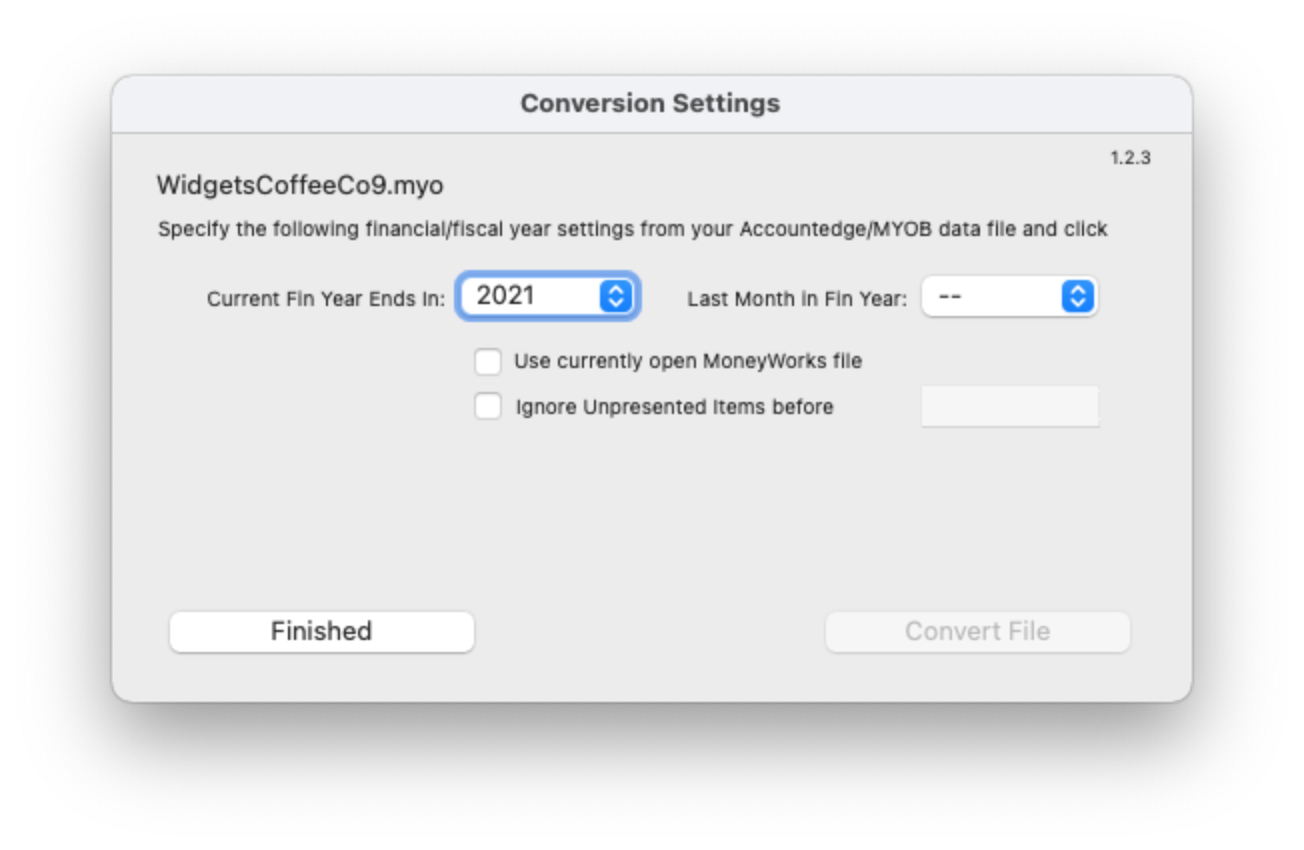
  4. AccountEdge Converter settings

  5. The Converter will then read the appropriate data out of your MYOB file and send it to MoneyWorks. MoneyWorks will come to front (possibly hiding the Converter window — if MoneyWorks wasn’t running, you should see it start). It will also open and close the file twice, and the whole process may take a few minutes, depending on the size of your data file. Do not be tempted to interact with the MoneyWorks file while the conversion is in progress — the Converter is using MoneyWorks Automation, a powerful part of MoneyWorks that lets it interchange data with other systems, to send data into MoneyWorks.
  6. When the Converter has finished (you will know because it will say “Finished” — if necessary bring the Converter to the front by clicking its icon in the dock), and assuming that nothing has gone wrong, you will be able flick into MoneyWorks and you should see your data there.
  7. You should run off a Balance sheet (or trial balance) from MoneyWorks (under Reports>Balance Sheet) for the most recent period, being sure to click the “Include Unposted” option, and compare the results with that of MYOB (the balance sheet layout is a bit different, so you will need to match up the numbers and tick each one off, ignoring the subtotals in the MYOB report).
  8. If you used Multi-Currency in MYOB, you will need to manually set up those currencies in MoneyWorks (and set the exchange rate to whatever it was set to in MYOB), and use the Funds Transfer command to transfer the bank balances from the old accounts to the new MoneyWorks forex accounts.
  9. Finally you should enter the appropriate information into the Company Details (under the Show menu) screen in MoneyWorks.

And that in theory is all you need to do. You might at some point want to tidy up your chart of accounts to take advantage of the more powerful concepts available in MoneyWorks.

For more detailed instructions, please download the MoneyWorks Converter Notes.pdf (about 1.3MB).

We need your feedback!

If you have used the Converter we would like to hear from you, whether it worked or not. Please let us know how you got on by emailing info at cognito.co.nz.

MoneyWorks Converter FAQs

Is it Guaranteed?

Absolutely not. It is provided on a “best endeavours” basis — it works for us but may not work for you. In particular there can be so many odd things in an MYOB data file that MoneyWorks just will not let happen, and this may thwart you.

What versions of MYOB or AccountEdge does it work on?

Any version from about 2004 up to and including AccountEdge 2019 and MYOB v19.x. There are a plethora of versions (different for every year and country), and we have tried it with Canadian, US, UK, Australian and New Zealand. In principle it should work for any jurisdiction. Note that it will not work on FirstEdge or BusinessBasics files.

It will not work on any versions of AccountRight that use the new database format. This appears to be AccountRight 2012 and later.

My MYOB file has heaps of rubbish in the cards and items file. Should I tidy this up first?

Try just sending it through to MoneyWorks. Maintaining your products and names information in MoneyWorks is much, much easier than in MYOB (for example, you can batch delete).

Where does the MoneyWorks file get created?

It will get created in the same directory as your MYOB file, and will have the same name (but a file extension of .moneyworks).

What if I need to do it again?

No trouble — just run it again (but remember that the previous MoneyWorks file will be over-written, so move it or change its name if you want to keep it for some reason).

Why are some of the products in MoneyWorks showing in Red?

The Converter detected that you had dodgy linked account codes (such as a bank account instead of a cost of sales account), so has replaced the code with something more sensible.

Why are some of the accounts and transactions in MoneyWorks showing in Green?

The Converter detected that these involved a foreign currency. The currency handling under MYOB and MoneyWorks is done differently. You will need to add the appropriate currencies into MoneyWorks (at the last exchange rate used in MYOB), and modify the transactions (they are in the dollar value of the foreign currency, not your local currency). For information on multiple currencies in MoneyWorks please refer to the MoneyWorks Manual.

Posted in File Conversion, Resources | Comments Off on Converting from MYOB or AccountEdge

Payroll

We’re often asked why we don’t include a payroll module with MoneyWorks. There are a number of very good reasons why:

  • Unlike accounting, payroll is different in every jurisdiction. Thus the payroll that works in Sydney will not be any use in Seattle;
  • Different organisations have different payroll requirements, so not having a payroll built in means that you can choose the payroll that best suits your requirements;
  • Payroll systems are high support, requiring updates whenever a tax change comes along, which in turns necessitates some sort of annual support fee;
  • By not providing payroll, we are able to focus on what we do extremely well (continue to develop MoneyWorks);
  • A payroll system will normally generate one payroll transaction per pay cycle, so the benefits of tight integration with your accounting system are questionable.

So with MoneyWorks you are free to choose the payroll that best suits your business. That said, the ones listed below are good starting points—they are all cross-platform (run on Mac and Windows), developed and maintained by professional payroll companies, and interface with MoneyWorks in some form. However if these don’t suit, find another that best meets your special requirements.

Australia

CloudPayroll
SmoothPayGold

New Zealand

iPayroll
SmoothPayGold

Canada

CheckMark Payroll

USA

CheckMark Payroll

Papua New Guinea

SmoothPayGold

Solomon Islands

SmoothPayGold

Samoa

SmoothPayGold

American Samoa

SmoothPayGold

Tonga

SmoothPayGold

Fiji

SmoothPayGold

Cook Islands

SmoothPayGold

Posted in Payroll, Resources | Comments Off on Payroll

Where is the “Flag” (or Analysis or Salesperson etc) field?

Click on the Views control at the top of the transaction entry screen and select the fields you want displayed.

If you don’t want to tab into a field each time, you can turn off its tabbing property. Simply right-click (Mac users control-click) in the field and choose ‘Don’t tab into’ from the contextual pop-up menu that appears.

Posted in FAQ | Comments Off on Where is the “Flag” (or Analysis or Salesperson etc) field?

What do I do if I have opened periods into the future?

You’ll just have to live with these, as there is no way that future periods can be closed. However provided you are using version 3 of MoneyWorks or CashWorks these should not cause any inconvenience, as the default period for most operations is determined by the current date.

If you are using an older version, the period wil often default to the last period opened, so you need to be vigilant when entering transactions, cancelling and so forth.

Posted in FAQ, Periods | Comments Off on What do I do if I have opened periods into the future?

Why can’t I enter a transaction into the period I want?

You will not be able to enter into a period if it is locked or closed (check using the Open/Close period command in the Command menu). If the period is locked, you need merely unlock it. If the period is closed, you will not be able to open it again, and hence will not be able to enter the transaction into that period (after all, that is why periods can be closed).

In version 2 of MoneyWorks and CashWorks, you could not enter into a period if the Display filter in the Transaction List window is set to not display that period. This restriction was removed in version 3.

Posted in FAQ | Comments Off on Why can’t I enter a transaction into the period I want?

Why can’t I close a period?

The most likely reason that you cannot close a period is because there are unposted transactions in the period. You need to post (or delete) these transactions.

The easiest way to find these is to go into your Unposted view (the View by Status view in the Transactions list window) and click on the Period heading to sort it by period.

Posted in FAQ, Periods | Comments Off on Why can’t I close a period?