Sept 2026
- 202609.30 9.2.6r1 Fixes a potential crash processing sales orders on Datacentre, as well as the possibility of more than one user processing the same orders simultaneously
- 202609.29 removed the network drill-down optimisation for now, as it did not work properly in all cases
- On Datacentre, Sales Order processing is now much faster: the processing runs entirely on the server
- Stocktake Commit Selection can be applied to a selected location
- Copy as HTML to copy highlighted list items as formatted HTML (e.g. to paste into an email). Select records, right click and choose Copy as HTML
- Fixed the missing table data underscore CSS style for HTML output
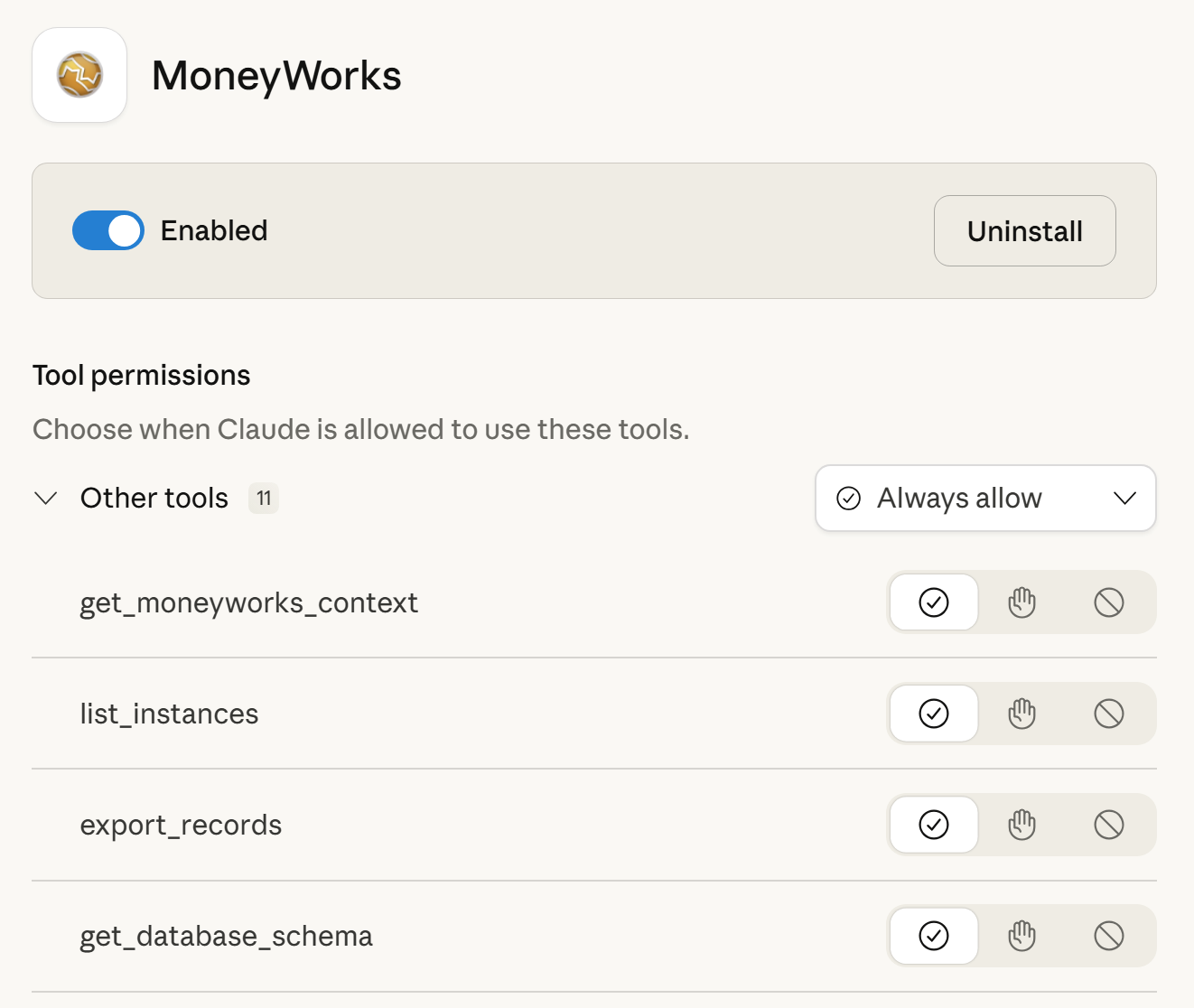
- Updated the MCP server installation into Codex to work around OpenAI changing the name of the app to ChatGPT(!). Also the Windows install for Claude and Codex should be less likely to run into Access Denied errors on Windows installations that are locked down with Applocker — installation can always be done the manual way if all else fails. In ChatGPT/Codex you can verify that the moneyworks MCP is installed and configure permissions at Edit → Settings → Plugins → MCPs
- MCP server adds an import_image tool. This allows you to use Claude et al to attach images to transactions (requires the Claude filesystem MCP to be enabled)
- MCP server adds an inspect_window tool. This helps Claude to have more insight into how to help you to create scripts to automate or streamline data entry tasks
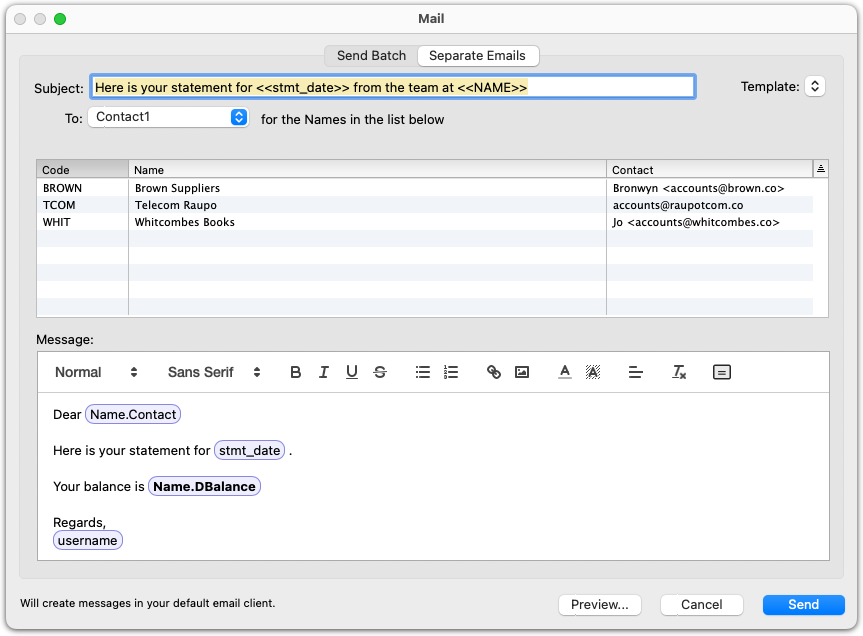
- The Expression Editor can be invoked from the mail composer with a new toolbar icon and also from any text field in Gold or Express via ⌘-opt-L (Mac) or ctrl+shift+= (replaces the Contra shortcut). If invoked for a mail subject containing expressions embedded in
<<>>it will select the text within the angle brackets for editing. This provides assistance for composing mail-merge expressions, showing you the list of available fields you can use, and checking the syntax for you - The Expression Editor in MoneyWorks Gold has syntax colouring and autocomplete of identifiers, making it easier to compose those tricky calculations

- 2026-09-23 minor update for Gold to allow skipping offer to reinstall COM keys on Windows if you delete Reinstall-MW-COM-Keys.exe. If you are on Mac or have no problem with COM key reinstallation, you don't need the Sep 23 update
- Entry field length is relaxed when you are typing an expression, so that you can type (or paste) a long expression into a short field
- Trial balance fixed issue with account codes that are a prefix of another code
- Purchase Order processing one-off stores the supplied cheque number
- Custom forms: Fixed some issues with some changes (e.g. object properties dialog) not triggering save changes on close
- Writing-off a foreign currency invoice now sets the write-off's TaxAmount field amount in the currency, not the base currency
- Added pseudo fields to access the raw special mailing/delivery address fields
- Std All budget reports column headings after page break
- Composite tax rates that were converted from an All tax rate do not appear in override popups. To fix, just change the raate record and the underlying unused infinity rates will be cleared
- Added
Transaction.SpecialMailingandTransaction.SpecialDeliveryfield names that provide access to the raw value of the special address fields (since the MailingAddress and DeliveryAddress field names always do automatic lookup of the related addresses from the Name record making it hard to know if the address is a special one (in particular for sales taxes - Fixed Sales Order processing becoming non-stoppable
- Added Westpac One EFT payments export format
- Fixed cosmetic glitches with preview report drilldowns when scrolling on Windows
- Fixed Bank Balances report by Accountants Code hanging when run on a network
- Support alt names in TLS certificates when host matching
- COM registry reinstaller corrections, plus additional keys for better 64 bit support
- Advanced Find by formula: Retry no longer closes window
- File Open on Windows no longer refuses to open read-only files
- Fixed navigator flickering horribly with Windows windowsCompositing hidden preference turned off
- Ctrl-0 for navigator keyboard shortcut
- Improved return key behaviour in dialogs with only one writeable text field
- Improved text field height scaling consistency on Windows
- Allow empty clones to be opened with write access by a demo (and reset read-only mode when switching to a new file that is unexpired for demo)
- Optimised the work-it-out case for control accounts for Name imports for up to 300x speed improvement
- Fix line spacing when printing directly to a printer driver on Windows
Server
- Server will clean up stale temp files automatically when disk space is low
- Windows clients on laptops will log out automatically when lid state changes to closed (on the assumption that network connectivity will soon be lost). In this situation, scripts may not begin a database update since network connectivity may be lost before the update can complete.
- Improved REST service resilience to various failure modes
- Plugin uploads are logged
- Plugin uploads are optional when uploading a document
- Server will check for updates nightly (currently new version is just logged on the server; in the near future clients will be able to notify users when the server version age is excessive)
- Console will also advise you of new updates at startup or if you leave it running
- Windows Console improve warnings about bad backup paths
- Windows Console supports keyboard shortcuts for copy/paste etc
Scripting
- Option to create custom window as a top level window on Windows using
fWindowMode_TopLevel(the window is modeless, but not constrained to the MDI frame). This can be (and should only be) used to create web view windows that can be moved onto another screen. On Mac, this just creates a normal window. XPathSerialisefunction reserialises an XPath node- In webviews in custom windows, you can use links with the schema
moneyworks://nav/hotlinkto invoke the Navigator hotlink dispatching - CLI logs privilege errors for better failure reporting to REST clients
- Increased lexical analyser maximum line length
- Re-save .mwscript with long filename no longer forces it to mwpkg format
- Fix HTTP server flakiness when it gets socket descriptor
0on Mac - New Script Document command is always visible in the File → New menu
-
UpdateOrderLinescan now take updates for batches and locations; the array keys for the items to update can optionally be productCodetabbatchNumtabLocation instead of just a product code. Also for even finer control where you want to update shipments from an alternative UI, you can specify the row number to update as the array key - Forced-disconnect: If a user logs out by closing their laptop lid*, new client-initiated database transactions cannot be started while the logout proceeds. This is to prevent problems when network connectivity is lost in the middle of a database update
*The logout-on-lid-close behaviour can be changed bySetAppPreference("disconnectOnLidClosed", true|false)but also see below regarding OS behaviour -
SetPersistentnow runs the record update entirely on the server. As such it may be safe to call when logging out. Other types of database updates are not. Caveat: On Windows 11, some devices (such as Surface Pro) will instantly reset network connections when you close the lid (depending on System Policy) - Moved the [+] icon in the Script Editor to cope with the excessively-rounded window corners in recent macOS versions
- Fixed some attributes in the schema xml export
- When saving a script package, the editor will first check and warn if the file on disk has been changed (in case you are editing a package in a Dropbox folder)
ContraInvoices(seq, seq)functionDoDatePicker(win, itemID)function. Use inEnterFieldhandler to pick a date for a custom field- Fixed scripted manipulation of checkboxes and tab views in a newly-opened window
- Fixed page size for REST doform PDF output on Windows servers
- Encryption support in Sqlite via SQLCipher (HAS_CODEC). No longer relying on OS sqlite lib on Mac. This provides v3.53.3 which fixes the 16 year old WAL-Reset bug that is not fixed in Sequoia or Tahoe
- Mac web views support open/save/print for feature parity with Windows Webview2
GetFieldAttribute(win, itemID)function to get information about UI objects- UI items that have no symbolic identifier are now given an ID of item_N where N is the item number. This is to make life easier for Claude et al
ProcessOrder(orderSeq, mode, params)function. Currently this supports one mode: ProcessOrder_GoodsReceivedBeforeInvoice, which requires a parameter array specifying unbilledStockAcct, date, and period e.g:ProcessOrder(993, ProcessOrder_GoodsReceivedBeforeInvoice, CreateArray("unbilledStockAcct", "2100", "period", CurrentPeriod(), "date", Today()))- Fixed several issues with External called from CLI
- Fixed CLIAppSupport capturing some paths it should not have
- Datacentre REST server now supports custom auth headers
X-Datacentre-AuthandX-Document-Authas alternatives to the (somewhat non-standard use of)Authorizationwith multiple realms. When using the custom headers, no realm is required in the base64-encoded Basicuser:passblock since it is part of the header name - Fixed SwizzleRename losing handlers when new name did not sort the same as original name in the nametable
- Find() relational searches between account ←→ ledger no longer need explicit link fields
- Script Editor better error checking of save failures due to read-only destination
- No longer double Validate on Windows via enter key in a Scintilla edit control
- Fix script editor crash when opening new editor after a compile error in another editor
- Script editor no longer considers script dirty if it was only recompiled with no Active state change
- Improved error handling when a script passes a bad path to
Mail()orBuilt_In:SendSMTPMail()