Christmas again! Seemingly only a couple months since the last one. We’ll be closing for a much needed break over the Christmas and New Year period. Admin services and phone support will be unavailable after Tuesday 23rd December, and will resume on Monday 5th January. Support over this period will be available by emailing support@cognito.co.nz.
We’d like to take this opportunity to wish you all a Happy Christmas, and our best wishes for 2026.
In this newsletter:
- MoneyWorks 9.2.4
- Performance Boost for Windows
- The Scourge of anti-virus on Windows
- Free Trials for MoneyWorks Services
- Singapore GST Invoice Now
- UK MTD for ITSA
- Tip du Jour
MoneyWorks 9.2.4
The MoneyWorks 9.2.4 update was released earlier this month, building on the earlier 9.2.3 update, which was released in November. As well as bug fixes and performance enhancements, these updates include some major features including:
Composing formatted email
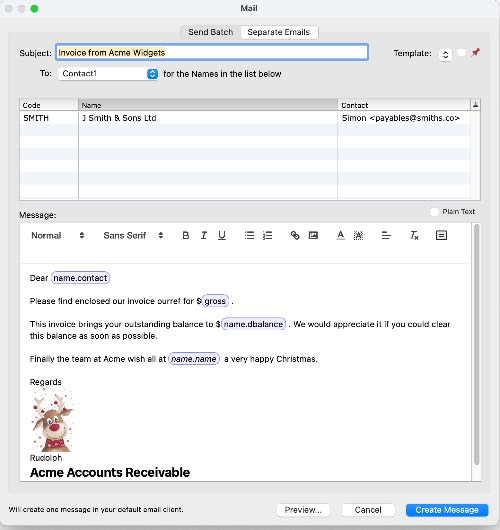
The email composer now allows text styling and images.
In MoneyWorks Gold and Express, the email output option now allows the body of the email to be composed within MoneyWorks regardless of the mail sending mode (previously the message body could only be supplied when using SMTP). You can use styled text in the message and include merge data from the MoneyWorks database. You can also save commonly used messages as templates. When using merge data, you can preview the results before creating the messages. Merge fields can be added by clicking the “=” button, or typing the field name in double angle brackets. For example <<gross>> will insert the total transaction amount when emailing a transaction.
For more information, see Emailing Forms in manual.
If you want to stick with sending plain emails, turn on the “Plain Text” checkbox on the mail message composer window.
Mail Merge
Since the merge functionality is so useful, there is also now a standalone Mail Merge command in the toolbar of the Names list for sending mail to highlighted customers or suppliers. Note that this will send the email with no attachments (you still need to use the Print Statements button to email a statement). When using this be sure to comply with the law regarding unsolicited non-transactional email.
For a complete list of the changes, see the MoneyWorks 9.2.4 change notes.
As modern security requirements make it impossible to support older systems, MoneyWorks 9.2.3 and later require Windows 10 or later, or macOS 12 (Monterey) or later.
Note that holders of perpetual licences can only update if their software maintenance is current. For Express and Gold users, there will be a prompt when their software maintenance becomes due, but they may elect not to pay it at that time. When they next attempt to update their software they will have the opportunity to pay any accrued maintenance.
Performance boost for Windows
The 9.2.4 MoneyWorks Gold release will migrate users who are still using the 32 bit version to the 64 bit version.
For users on arm64 based Windows (e.g. Surface Copilot PC), the 9.2.4 MoneyWorks Gold release will migrate users from Intel (32- or 64-bit) MoneyWorks Gold to the arm64-native version.
Note: For users of the 32 bit Windows version, the install location will change from “Program Files (x86)” to “Program Files”. If you have a pinned taskbar icon, or a shortcut to MoneyWorks Gold, you will need to update them.
The scourge of anti-virus on Windows
A number of Windows users have recently reported that MoneyWorks wouldn’t run after an update, instead displaying the message “The code execution cannot proceed because Lexilla.dll was not found”. This was caused by some antivirus software falsely identifying a component of MoneyWorks as being “potential” malware and deleting it. The reason turns out to be that the component has some words in it that looked like script programming terms. In fact the component has scripting terms in it because its purpose is for syntax colouring scripts in the MoneyWorks script editor..
In this instance, the problematic products were Avast, AVG, Norton, and Cynex, which are all from the same company. Windows has built-in virus scanning that, although not perfect, is far less likely to be problematic (and is also the only antivirus we — and most software developers — would ever test with). All antivirus on Windows creates a hostile environment for software to operate in, and comes with significant performance penalties, so using random antivirus can cause you problems beyond randomly deleting vital files.
Third party antivirus products — especially “free” ones — have been known to engage in very dubious behaviour such as collecting and selling web browsing history. Subscription products have been known to miraculously “find” malware just before the subscription comes due to encourage renewals. Our advice is to be very circumspect about choosing antivirus. Microsoft’s built-in Defender is recommended because it is least likely to cause problems, both technical and in terms of false positives, and has no reason to promote itself by being constantly visible. Whatever you use, you can check ostensibly suspicious files that your antivirus wants to delete by uploading them to virustotal.com which will check against over 70 products. If only one company complains about it, then probably that product is at fault. This is especially the case for heuristic triggers rather than actual identified known malware code.
Free Trials for MoneyWorks Services
There is now no charge for the first month of use of a MoneyWorks Service, allowing you to try a service before committing. Note that you only get one shot at the free trial, and, unless you disable it, you will get automatically charged after the trial period ends.
Singapore GST InvoiceNow
MoneyWorks is currently working through the IRAS accreditation process for GST InvoiceNow, as well as the new requirements for Advanced Ordering.
South African Support
Good news for the increasing number of MoneyWorks users in South Africa (indeed all of Southern Africa)—AgileWorks, the regional distributors of MoneyWorks, can now offer full MoneyWorks support via phone and email. MoneyWorks users in South Africa should register with AgileWorks by emailing support@moneyworks.ai—we cannot do this for you as we have undertaken not to share your details with any other party.
UK MTD for ITSA
For UK users, we expect MoneyWorks to be ready for MTD for ITSA by March next year. And if you don’t know what ITSA is, ignorance is bliss.
Tip du Jour
We often get asked how to find “current” customers. There are two ways to do this:
1. Through the MoneyWorks User Interface
Let’s assume that “current” means they have purchased from us since the start of 2023. To find the current customers:
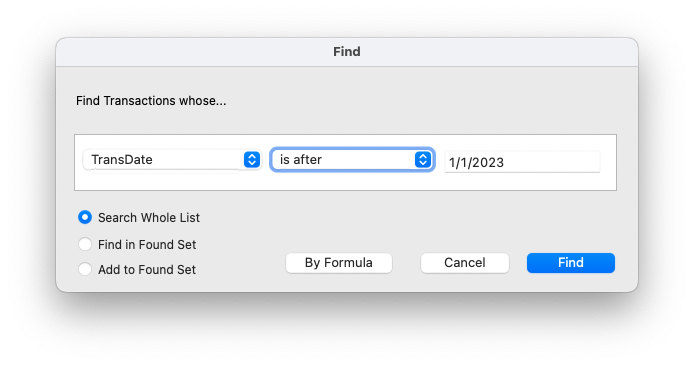
- Go to the Sales Invoice view of the transaction list and find all the sales invoices dated on or after the 1st Janaury 2023. Do this by choosing Select>Advanced Find, and setting the search as shown at right.
- Highlight all the found invoices by choosing Edit>Select All (or press Cmd-A on macOS, or Ctrl-A on Windows).
- Click the “Related” toolbar icon. This allows you to find a set of related records, such as customers, from the current highlighted records.
- In the Find Related window, check that the settings are to find “Name”, show in view “All”, and to make these the “Found Set” (these are actually the default settings), and click “Go”.
The names list will be displayed with just the customers from the invoices that you had highlighted (i.e. those who have purchased since the start of 2023). You can now print/export that list, or use the Mail Merge to send them a nice thank you email.
Find Related is a very useful facility to understand. If we have chosen “Product” instead of “Name” in the last step, it would have shown all Products that had sold in the time period.
2. Using a Related Find expression
The Find window shown above has a “By Formula” option, allowing us to enter search expressions. To find the invoices since the start of 2023 we could have entered TransDate > ‘1/1/2023’ as a simple formula.
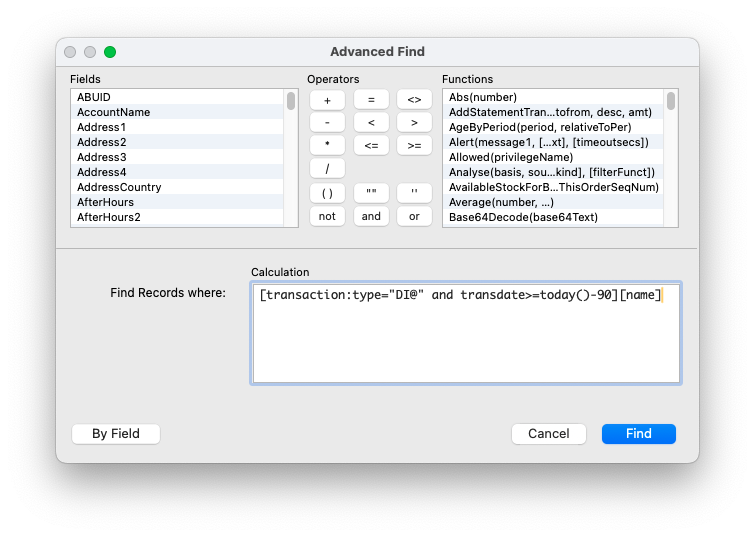
A Related Find is a bit more complicated, as it allows you to search on more than one table at a time. Let’s assume here that “current” means customers who have purchased in the last 90 days.
- Choose Show>Names and select the Customers view.
- Choose Select>Advanced Find (or press cmd-option-F on macOS or ctrl-shift-F on Windows) to open the Find window, and click the “By Formula” button.
- Copy/paste the formula below into the Calculation box of the Find window
[transaction:type=”DI@” and transdate>=today()-90][name]
This will find all sales invoices for the last 90 days, then find the related customers.
If this is something you need to monitor every month or so, make a list filter for the Names list and paste the search expression in that.